Taking Code Screenshots in Neovim
3 min read
Back when I was using VS Code, taking code screenshots was very easy with the CodeSnap extension. I wanted the same thing in Neovim, so I started searching for something similar.
I tried the popular carbon-now.nvim, but it opens your browser for every screenshot. You need an internet connection, and worse, the mouse to customize and save, not very Neovim-friendly. As a keyboard guy, I wanted something more native: just select the code, press a key, and the screenshot is saved automatically.
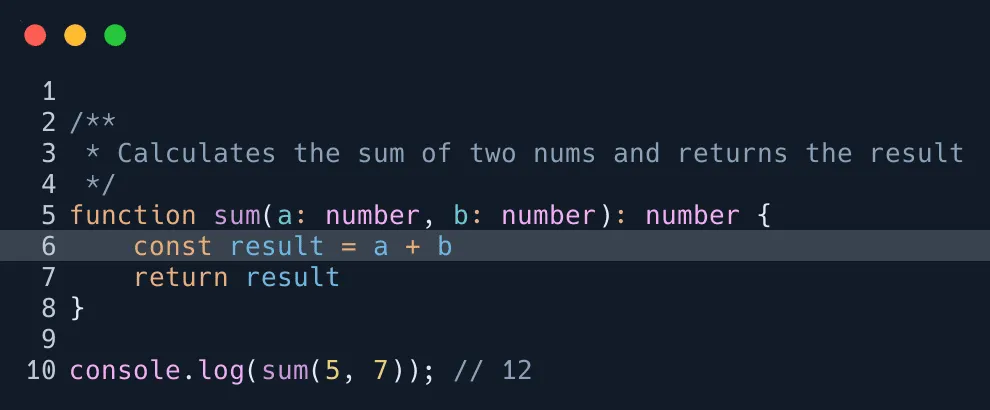
After looking for a better solution, I found nvim-silicon. Unlike carbon-now.nvim, it works entirely within Neovim and generates a clean screenshot in the root of your project directory.
Important
nvim-silicon is based on the Silicon command-line tool, so you need to install it first.
You can install it using your system’s package manager. I use pacman, so for me, it would be
pacman -S siliconInstallation
To install the plugin using Lazy.nvim, add it inside your setup:
require('lazy').setup({
{
  'michaelrommel/nvim-silicon',
  lazy = true,
  cmd = 'Silicon',
  main = 'nvim-silicon',
  opts = {
        }

    }
})
Configuration
You can change the theme, background, border radius, padding, and more. For all available options, check Plugin’s GitHub page.
  opts = {
    theme = 'Coldark-Dark',
    background = nil,
    no_round_corner = true,
    pad_horiz = 0,
    pad_vert = 0,
    shadow_blur_radius = 0,
        }
Tip
Since this plugin is based on Silicon, to see all available themes, run in your terminal:
silicon --list-themesOutput Folder
By default, screenshots are saved in the root of your project. You can change it to save all screenshots in a specific folder like this:
  opts = {
    output = function()
      return '~/Pictures/Code/' .. os.date '!%Y-%m-%dT%H-%M-%SZ' .. '_code.png'
    end,
  },
Keybind
To take a screenshot, select the code in visual mode, and run the Silicon command in command mode.
But you can also create a keybind in your config:
vim.keymap.set('v', '<leader>ss', function()
  require('nvim-silicon').shoot()
end, { desc = 'Create code screenshot' })
Feel free to choose any keybind you prefer.
Highlight a Line in the Screenshot
You can highlight a specific line by marking it. For example:
- Go to the line you want to highlight
- Set a mark with
mh(m+h)
The marked line will be highlighted in the screenshot.
Unsupported Files
Currently, some file types aren’t supported. I tried to screenshot some code in a .astro file, which caused the following error:
silicon returned with : [error] Unsupported language: astro
To work around this, I made nvim-silicon treat .astro files as HTML:
  opts = {
    language = function()
      local fileType = vim.bo.filetype
      if fileType == 'astro' then
        return 'html'
      end
      return fileType
    end,
  },
Credits
Sources and references for this blog include: