An Alternative to Alt-Tabbing in Windows
4 min read
As a developer, switching between applications is one of the most frequent tasks you do.
When I started using Linux, one of the best features for me was window managers like i3wm or Hyprland. After a couple of days, I noticed how fast I could switch between workspaces with almost zero mental overhead.
In Windows, you have Alt-tabbing, which works if you only have 2-3 apps open. Once you have more, it quickly becomes a pain. You hold Alt, scan with your eyes, and press Tab multiple times until you land on the app you want. If you miss, you have to circle all the way back 😐.
Each switch adds a tiny bit of mental fatigue, and over time, you start feeling tired without realizing that Alt-Tabbing might be the culprit.
The easy fix would be to ditch Windows altogether. I think macOS has something similar to i3wm, like Amethyst, but if you are not a fan of Apple, Linux is the way to go.
If, however, you are stuck with Windows for some reason, as I was, you can still set up something similar to improve your developer workflow a bit. It won’t replace a proper tiling window manager, just a taste of its window switching.
For our purpose, we’ll use AutoHotKey (AHK). It’s an open-source tool for Windows that lets you create custom keyboard shortcuts.
We’ll use it to launch and switch between apps that we frequently work with. For example, pressing Alt + 2 switches to Chrome, Alt + 3 switches to VS Code, and so on.
It might sound unnecessary at first, but once you get used to it, you slip into a flow state. Switching apps becomes muscle memory, your hands stay on the keyboard, and you stop thinking about where things are and stay focused on what you’re doing.
Setup
Download and install AutoHotKey. v2.0 is currently the latest.
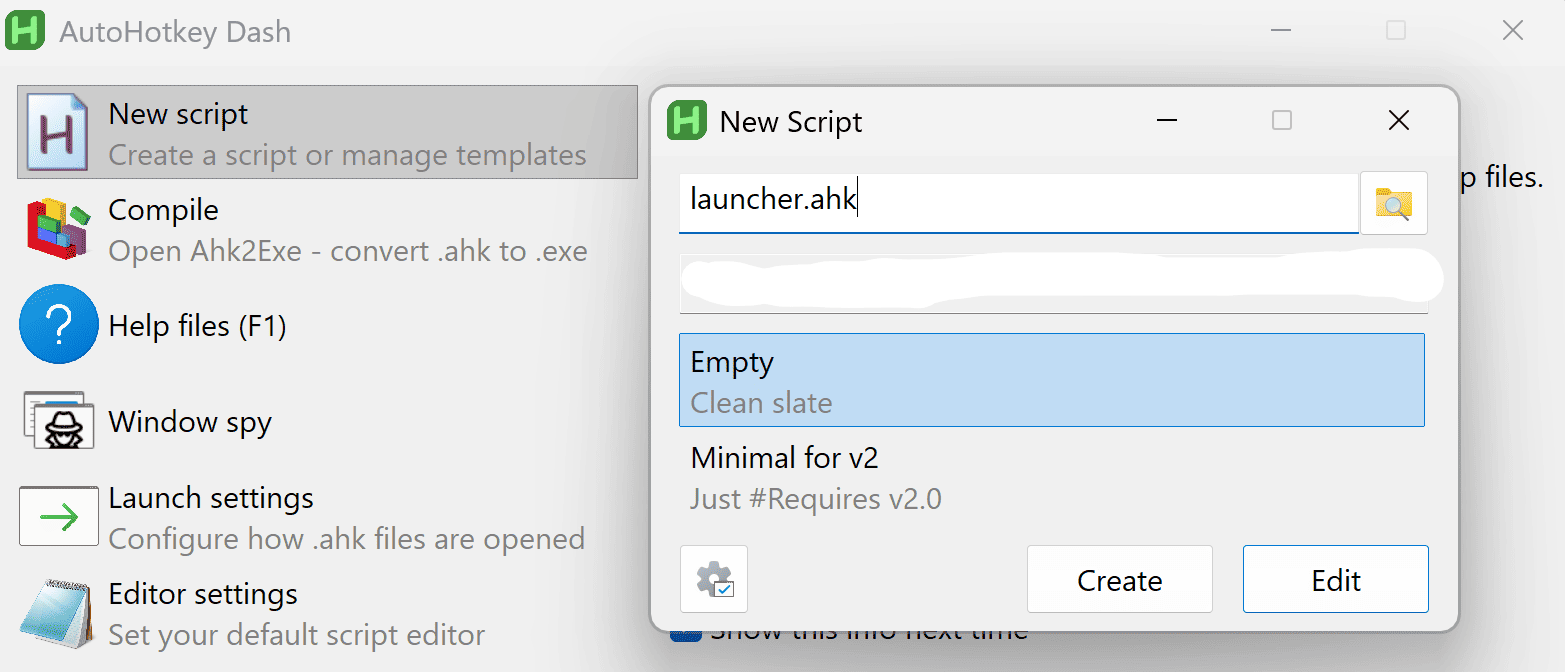
Open it, create a new script, and save it somewhere convenient.
Open the .ahk file in your code or text editor and paste the following script:
!1:: ; Alt+1
{
    if WinExist("ahk_exe brave.exe")
    {
        WinActivate
    }
    else
    {
        Run "brave.exe"
    }
    return
}

!2:: ; Alt+2
{
    if WinExist("ahk_exe chrome.exe")
    {
        WinActivate
    }
    else
    {
        Run "chrome.exe"
    }
    return
}

!3:: ; Alt+3
{
    if WinExist("ahk_exe code.exe")
    {
        WinActivate
    }
    else
    {
        Run "C:\Users\mustafa\AppData\Local\Programs\Microsoft VS Code\Code.exe"
    }
    return
}

!4:: ; Alt+4
{
    if WinExist("ahk_exe figma.exe")
    {
        WinActivate
    }
    else
    {
        Run "figma.exe"
    }
    return
}
Save the file and run it (just double-click it). It will start running in the background and appear in the system tray. The shortcuts should be working now.
My setup looked like this:
Alt + 1 → Brave
Alt + 2 → Chrome
Alt + 3 → VS Code
Alt + 4 → Figma
Based on this script, pressing Alt + 1 switches to Brave. If it isn’t already running, it launches it instead.
In my case, I browsed in Brave, tested my localhost in Chrome, wrote code in VS Code, and used Figma to implement designs.
You can tweak this to match the apps you use most, or add new keybindings for other programs.
Tip
To add a new program to the script, you need the program’s executable name.
You can find it in Task Manager → Details while the app is running. For example, File Explorer is explorer.exe.
If you can’t find a program’s name, or it doesn’t work (usually because it isn’t in your PATH), use the full path to its executable, like I’ve done for VS Code.
Tip
You can use any shortcut you prefer, but this setup is very close to Hyprland’s Super + 1–9 workflow. Since the Super key (aka the Windows key) is busy doing Windows things, Alt + 1–9 is a very close alternative.
Run the Script on Startup
You can have the script start automatically when Windows boots.
Press Win + R, type shell:startup, and hit Enter. This opens the Windows Startup folder.
Place the .ahk file in this folder and you’re done. Your keybindings will be available automatically every time Windows starts.
If this doesn’t work for you, you can find another way to run the script on Windows boot.
It’s a small setup, but it makes daily app switching on Windows a bit less painful.